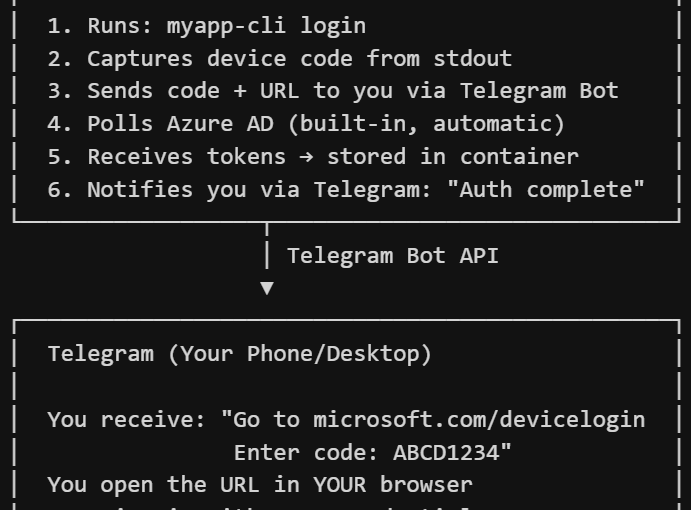
Device Code Flow has been built into OAuth2 for years, originally designed for TVs and game consoles. It works just as well for a Docker container. It requires no credentials stored on the agent machine. It gives you narrow, revocable access that the agent cannot exceed.
I have OpenClaw deployed in a sandboxed docker container on a dedicated host. I communicate with it via a Telegram bot, in a locked-down chat.
I wired the device-code authentication pattern up with OpenClaw and Microsoft (Personal/Consumer) services, but the authentication approach works with any app and any command-line tool you want to run in a headless environment, including Custom APIs. Device code flow + Entra ID app registrations give you a zero-stored-credentials gateway to any HTTP API you can build, not just Microsoft Graph.
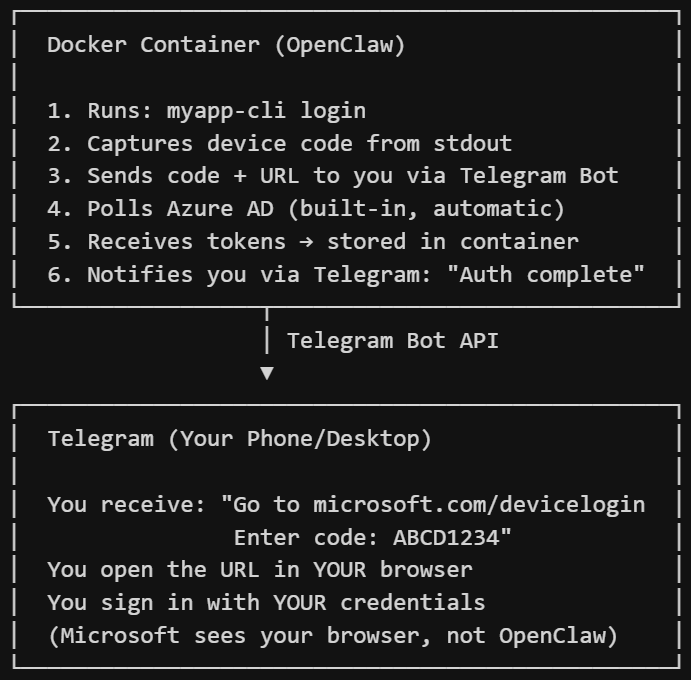
What Is Device Code Flow?
OAuth2 device code flow (RFC 8628) was designed for “input-constrained devices” — things without a keyboard or a browser. Think of how you sign in to Netflix on a smart TV: a short code appears on screen, you visit a URL on your phone, you type the code in, and the TV logs in. You never type your password on the TV.
The official name for that pattern is the device authorization grant. A Docker container is, from the protocol’s perspective, exactly the same kind of device. It has no browser. It cannot perform an interactive redirect. But it can make HTTP requests, and that is all it needs.
The flow has three steps:
1. The app posts to the identity provider’s device code endpoint. It gets back a short user code (like “WDJB-MJHT”), a verification URL, and a polling device code.
2. The user visits the URL on any browser, on any device — their phone, laptop, anything — and enters the short code. They sign in normally, with their usual credentials and MFA if it is enabled.
3. The app polls the token endpoint in the background. Once the user finishes signing in, the poll returns a real access token and a refresh token. The app stores these and uses them for API calls going forward.
The app never sees the password. The password goes directly from the user’s browser to the identity provider. The app only ever handles two things: a short temporary code that it sends to the user, and a token that the identity provider gives back once the user has authenticated.
OpenClaw running in a Docker container fits this model exactly.
Which Services Support this?
Device code flow is not a Microsoft-only feature. It is a standard OAuth2 extension (RFC 8628) and most major identity providers support it — including Microsoft, Google, GitHub, and AWS. If a service uses Okta or Auth0 for identity, those support it too.
The Security Architecture
The agent never sees your credentials. Your password is typed in your browser, on your device, to your identity provider’s servers. It never touches the container. The agent only handles a short temporary code to give you, and a token issued by the provider once you have authenticated.
The device code is one-time and short-lived. After the user authenticates, the code is permanently invalidated. An intercepted code is useless without the user’s credentials and MFA.
Scopes define the ceiling. You configure the OAuth app or app registration to request only specific permissions. The agent cannot exceed those scopes. If you configure read-only access to email, the token cannot be used to send or delete email.
This is the authentication pattern that many of the consumer devices you already own use to access your accounts on your behalf. Your TV’s YouTube app, your smart home hub’s Google integration, the GitHub CLI you use on your workstation — these all use device flow. You have been trusting it for years without knowing what it was called.
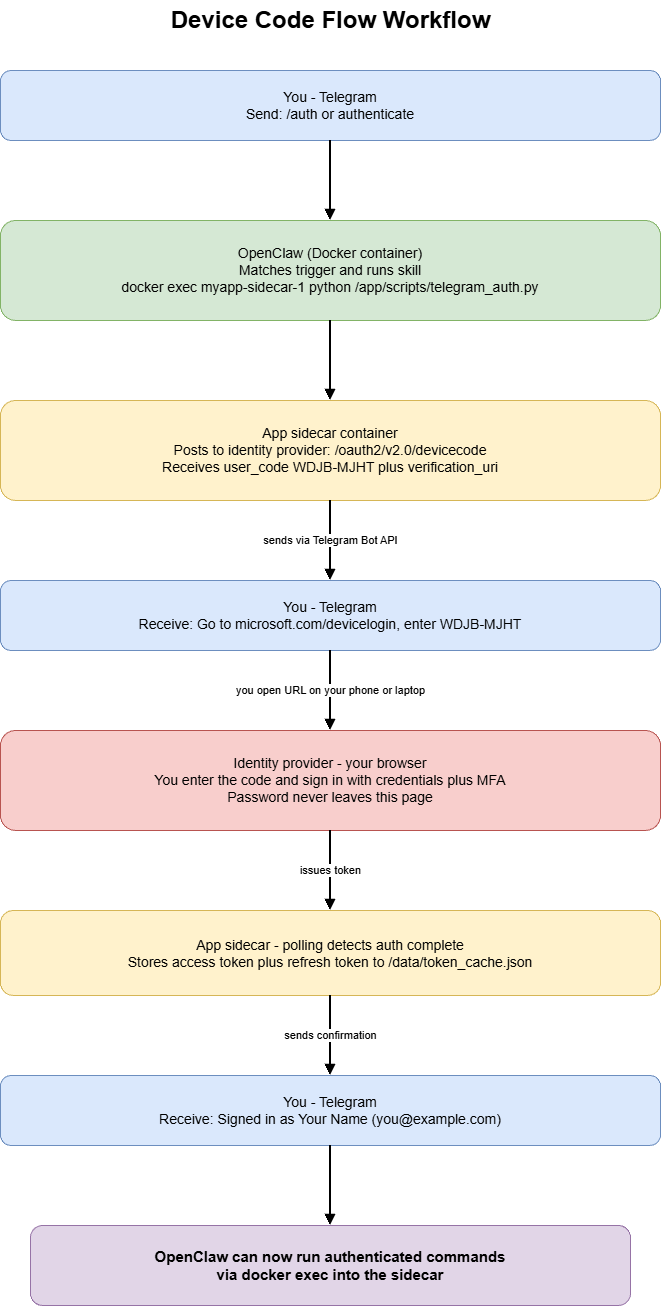
How the implementation works
There are three components, and they run as separate Docker services that talk to each other through the Docker socket.
The app sidecar is your application container. It runs your CLI tool and your auth logic. It does nothing on its own. Its only job is to hold the authenticated token cache and execute commands on demand when OpenClaw calls into it.
OpenClaw is the AI agent container. It connects to Telegram, understands natural language, and knows which skills to run for which requests. It does not know anything about OAuth or your specific app. It just runs shell commands you specified and reports results back to you.
The Telegram auth bridge is a small script that lives inside the sidecar. It registers a device code callback, requests an auth flow, and uses the Telegram Bot API to forward the code to you — then confirms when authentication completes.
The compose file looks roughly like this:
```yaml
services:
  myapp-sidecar:
    image: ghcr.io/youruser/myapp:latest
    command: ["sleep", "infinity"]
    environment:
      - XDG_DATA_HOME=/data
      - TELEGRAM_BOT_TOKEN=${TELEGRAM_BOT_TOKEN}
      - TELEGRAM_CHAT_ID=${TELEGRAM_CHAT_ID}
    volumes:
      - ${APP_DATA_DIR:-./app-data}:/data
    restart: unless-stopped

  openclaw-gateway:
    build:
      context: .
      dockerfile: Dockerfile.openclaw
    volumes:
      - /var/run/docker.sock:/var/run/docker.sock
      - ./skills:/app/skills
    group_add:
      - "${DOCKER_GID:-999}"
    environment:
      - TELEGRAM_BOT_TOKEN=${TELEGRAM_BOT_TOKEN}
    ports:
      - "18789:18789"
    restart: unless-stopped
```
The Callback Pattern
The auth manager has a method called set_device_code_callback. You pass it a function, and when the device code is ready, the auth manager calls your function with the code and the verification URL rather than trying to open a browser.
```python
class AuthManager:
    def __init__(self, client_id: str, authority: str) -> None:
        self._client_id = client_id
        self._authority = authority.rstrip("/")
        self._on_device_code = None
        self._tokens = self._load_cache()

    def set_device_code_callback(self, fn) -> None:
        self._on_device_code = fn

    async def _device_code_auth(self) -> None:
        async with httpx.AsyncClient() as client:
            resp = await client.post(
                f"{self._authority}/oauth2/v2.0/devicecode",
                data={"client_id": self._client_id, "scope": OAUTH_SCOPES},
                timeout=30,
            )
        flow = resp.json()
        user_code = flow["user_code"]
        verification_uri = flow["verification_uri"]
        device_code = flow["device_code"]
        interval = flow.get("interval", 5)
        expires_in = flow.get("expires_in", 300)

        if self._on_device_code:
            self._on_device_code({
                "user_code": user_code,
                "verification_uri": verification_uri,
                "message": flow.get("message", ""),
            })
        else:
            try:
                webbrowser.open(verification_uri)
            except Exception:
                pass

        deadline = time.time() + expires_in
        while time.time() < deadline:
            await asyncio.sleep(interval)
            async with httpx.AsyncClient() as client:
                resp = await client.post(
                    f"{self._authority}/oauth2/v2.0/token",
                    data={
                        "client_id": self._client_id,
                        "grant_type": "urn:ietf:params:oauth:grant-type:device_code",
                        "device_code": device_code,
                    },
                    timeout=30,
                )
            body = resp.json()
            if resp.status_code == 200 and "access_token" in body:
                self._store_tokens(body)
                return
            error = body.get("error", "")
            if error == "authorization_pending":
                continue
            elif error == "slow_down":
                interval += 5
            elif error in ("authorization_declined", "expired_token"):
                raise AuthError(error)
            else:
                raise AuthError(body.get("error_description", "Auth failed"))
```
The polling loop handles the three error codes the spec defines: authorization_pending (keep waiting), slow_down (back off and increase the interval by 5 seconds), and the terminal errors that stop polling.
The Telegram Bridge
With the callback mechanism in place, the Telegram bridge is just a script that registers a callback and uses the Telegram Bot API to deliver the code to you:
```python
import asyncio, os, sys, traceback
import httpx
from your_app.auth import AuthManager
from your_app.config import Settings

TELEGRAM_BOT_TOKEN = os.environ["TELEGRAM_BOT_TOKEN"]
TELEGRAM_CHAT_ID = os.environ["TELEGRAM_CHAT_ID"]

async def send_telegram(text: str) -> None:
    url = f"https://api.telegram.org/bot{TELEGRAM_BOT_TOKEN}/sendMessage"
    async with httpx.AsyncClient() as client:
        await client.post(url, json={
            "chat_id": TELEGRAM_CHAT_ID,
            "text": text,
            "parse_mode": "Markdown",
        }, timeout=30)

async def main() -> int:
    settings = Settings()
    auth = AuthManager(settings.client_id, settings.authority)

    if auth.is_signed_in():
        await send_telegram("Already authenticated.")
        return 0

    def on_device_code(info: dict) -> None:
        msg = (
            "*Auth Required*\n\n"
            f"Go to: {info['verification_uri']}\n"
            f"Enter code: `{info['user_code']}`\n\n"
            "Complete sign-in in your browser and I'll confirm when done."
        )
        try:
            asyncio.get_event_loop().create_task(send_telegram(msg))
        except RuntimeError:
            import requests
            requests.post(
                f"https://api.telegram.org/bot{TELEGRAM_BOT_TOKEN}/sendMessage",
                json={"chat_id": TELEGRAM_CHAT_ID, "text": msg, "parse_mode": "Markdown"},
                timeout=10,
            )

    auth.set_device_code_callback(on_device_code)
    try:
        user_info = await auth.sign_in()
        await send_telegram(f"*Signed in* as {user_info['name']} ({user_info['email']})")
        return 0
    except Exception as exc:
        await send_telegram(f"*Auth failed:* {exc}\n```{traceback.format_exc()[:800]}```")
        return 2

if __name__ == "__main__":
    sys.exit(asyncio.run(main()))
```
The OpenClaw Skill
On the OpenClaw side, a “skill” is a markdown file. When OpenClaw sees a trigger phrase in Telegram, it runs the associated shell command. The markdown file looks like this:
—
name: myapp-auth
description: Authenticate with the cloud service via device code flow, coordinated through Telegram.
—
## myapp-auth
Use this skill when the user sends “/auth”, “authenticate”, or “sign in”.
Run the following command and wait up to 360 seconds for it to complete.
The script sends the device code to the user via Telegram and confirms when done.
docker exec myapp-sidecar-1 python /app/scripts/telegram_auth.py
Summary
Device code flow is a mature, widely-supported OAuth2 pattern that maps naturally onto OpenClaw running in Docker container. With this pattern OpenClaw never handles your credentials. It gets scoped, revocable tokens from the identity provider, after you have authenticated in your own browser. A Telegram bot is all you need to coordinate the handoff of the temporary code.
The approach works for many use-cases across Microsoft accounts, Google, GitHub, AWS, Auth0, Okta and others. It supports exactly the kinds of personal automations that make an OpenClaw genuinely useful in daily life.
References
- OpenClaw Documentation
- OpenClaw: Creating Skills
- RFC 8628: OAuth 2.0 Device Authorization Grant
- Microsoft Identity Platform: Acquire a Token Using Device Code Flow
- Microsoft Graph Permissions Reference
- Auth0: Device Authorization Flow
- Okta: Configure Device Authorization Grant Flow
- Telegram Bot API
- Docker Compose File Reference